
This is an old revision of the document!
Table of Contents
switcheRoo Display Manager — User Guide
switcheRoo (binary name xRoo.exe) is a small system-tray utility for Windows that
switches monitor resolutions, refresh rates, rotation and screen layouts, and stores
your favourite setups as presets.
Everything is done from the tray icon; the program has no main window.
Requirements
- Windows 10 or later (64-bit) - One or more displays attached to the computer
switcheRoo uses the standard Windows display APIs, so anything Windows can display, switcheRoo can switch to. No driver or service is installed.
Installing
1. Run xRoo_Installer.exe.
2. Accept the license agreement, choose a folder (default C:\Program Files\xRoo)
 and finish the wizard. The **Add to PATH** component is optional; select it to
 run `xRoo.exe` from any command prompt without typing the full path.
3. The installer creates a desktop shortcut, an xRoo folder in the Start menu,
and copies `license.txt` into the installation folder.
Administrator rights are required because the program is installed for all users of the computer.
Starting switcheRoo
Start switcheRoo from the desktop shortcut, the Start menu, or by enabling Start with Windows (see below). It then lives in the notification area (the “system tray”) near the clock.
- Only one copy runs at a time. Starting it again shows
- “xRoo is already running in the system tray.”*
- Hover the tray icon to see a summary of every display: number, monitor name,
`(primary)` marker and current resolution with refresh rate.
- The icon may be hidden in the overflow area (the ^ arrow next to the clock);
drag it onto the taskbar to keep it visible.
Closing the menu does not exit the program — use Exit in the menu.
The tray menu
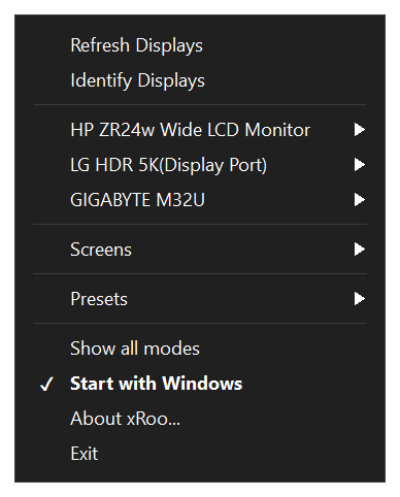
Left-click or right-click the tray icon to open the menu.
The top section lists the displays that are currently part of the Windows desktop,
in physical layout order: left to right within a row, then top to bottom across
rows. The tray tooltip uses the same order. Displays are numbered in menu order,
and that number is what --list-displays and --set-display use on the command
line.
Menu conventions:
- Bold = the entry is currently in effect (current resolution, matching preset).
- Checkmark = the exact item or option is active (current refresh rate, current rotation, a display that is switched on, an enabled option).
- An arrow
▸means the entry opens a submenu.
Display settings
Open a display's submenu to change it:
 GIGABYTE M32U                       ← monitor name (header)
 ✓ Display on                        ← click to switch this display off
 Rotation                          ▸ ← Landscape / Portrait / flipped
 ──────────────────────────────────
 3840x2160                         ▸ ← multiple refresh rates
 2560x1440                         ▸
 1920x1080 @ 60 Hz                   ← only one refresh rate
Resolutions
- The list is sorted by size, largest first.
- The current resolution is shown in bold.
- If a resolution supports more than one refresh rate, it opens a submenu; the active rate carries a checkmark.
- If it supports only one rate, the menu shows it directly (
1920x1080 @ 60 Hz). - Clicking a resolution or refresh rate applies it immediately. Windows stores the new mode, so it is still in effect after a reboot.
Display on / off
- The first entry reads Display on with a checkmark while the display is active, and Display off when it is switched off.
- Clicking it toggles the display. switcheRoo waits briefly for the layout change to take effect; if Windows or the driver refuses it, the display stays as it was.
- switcheRoo refuses to switch off the last active display, so you cannot end up with a blank screen and no way to recover.
- Turning a display off is a temporary layout change: it is not written to the saved Windows layout. After a reboot,
Win+P, or reconnecting the monitor, every display comes back. This is deliberate and is the easiest way to recover a display you switched off by accident. - Depending on the graphics driver, a display may disappear from the list while it is switched off. Bring it back with Screens › Extend all displays, with
Win+P, or by rebooting.
Rotation
Rotation offers:
| Entry | Orientation |
|---|---|
| Landscape | normal (0°) |
| Portrait (90 deg) | 90° clockwise |
| Landscape (flipped) | 180° |
| Portrait (270 deg) | 270° |
The current orientation has a checkmark; the Rotation entry itself is bold when the display is not in normal landscape. Switching to a portrait mode swaps width and height automatically. Rotation is saved by Windows and survives a reboot.
Screen layouts
Screens controls which displays are active at all:
- Extend all displays — switch every connected display back on, using the last full extended layout that Windows has stored. This is the quickest way to undo one or more “display off” changes.
- Each display by name — keep only that display and switch all others off.The display is switched on first if necessary. The active display has acheckmark.
Examples:
- Presenting on a projector: Screens › Projector, then Screens › Extend all displays when you are done.
- Working on a laptop screen only: Screens › Laptop.
Presets
A preset is a named snapshot of the resolution and refresh rate of every display that is switched on at the time it is saved.
Saving a preset
1. Set up all displays the way you want them. 2. Presets › Save current setup as preset… 3. Enter a name in the dialog and confirm with OK.
The dialog proposes New preset; if that name is already used, a number is
appended (New preset (2)). Names are limited to 64 characters, leading and
trailing spaces are removed, and an empty name is not accepted.
Presets are written to disk immediately, so they survive reboots and updates.
Applying a preset
Click the preset name in the Presets menu. The name is shown in bold while the displays match that preset exactly.
When applying, switcheRoo:
- skips displays that are already in the target mode, - switches on a display of the preset that is currently off, if Windows still
knows a mode for it,
- uses the closest available refresh rate if the exact rate is no longer offered
by the monitor,
- shows a warning box listing any display that could not be set (for example
"no mode 2560x1440" after a monitor was replaced).
The whole preset is applied immediately; there is no confirmation prompt.
Renaming and deleting
- Presets › Rename preset › name — opens the same naming dialog, prefilled
with the current name. Renaming to an existing name adds a number instead of
creating a duplicate.
- Presets › Delete preset › name — asks for confirmation (the default
button is **No**) and then removes the preset permanently.
What a preset contains
For each display: the monitor identity, resolution, and refresh rate.
Not included: rotation, display position/arrangement, scaling, colour profile and HDR settings. Rotation is changed with the display's Rotation submenu instead.
Preset order
Presets are listed in the order they were created. That order also decides which
preset a hotkey applies (first preset = Ctrl+Alt+1, and so on).
Hotkeys
| Shortcut | Action |
|---|---|
Ctrl+Alt+1 … Ctrl+Alt+9 | Apply the 1st … 9th preset |
- Hotkeys work while switcheRoo is running, from any application.
- The hint Hotkeys: Ctrl+Alt+1..9 is shown inside the Presets menu once at
least one preset exists.
- If another program already owns one of these combinations, that hotkey simply
does nothing for switcheRoo. Pick another key combination in the other program
if this happens.
- Presets beyond the ninth are still available from the menu.
Show all modes
Monitors report many legacy modes (640×480, 800×600, …). To keep the menu short, switcheRoo hides small modes by default:
- a mode is hidden when it is smaller than 1280×960 (both dimensions below the
threshold),
- the current mode is always shown, whatever its size.
Enable Show all modes to list every mode the monitor reports. The entry carries a checkmark and is bold while the option is on, and the setting is remembered for the next start.
Start with Windows
Start with Windows adds or removes switcheRoo in
HKEY_CURRENT_USER\Software\Microsoft\Windows\CurrentVersion\Run
(value name xRoo). The entry carries a checkmark and is bold while autostart
is enabled.
This affects the current Windows user only and needs no administrator rights.
Identify and refresh
- Identify Displays overlays a large number on every active monitor for about
three seconds. Use it to find out which physical screen belongs to which menu
entry.
- Refresh Displays re-reads the display list. The list is also refreshed
automatically whenever Windows reports a display change (plugging a monitor,
`Win+P`, a driver change, …).
About and Exit
- About xRoo… shows the application name, version (for example
`Version 2.0.0.0`), build date, copyright line and a link to the switcheRoo
website, <https://switcheroo.db-w.com>. Please quote the version and build date
when reporting a problem.
- Exit closes switcheRoo and removes the tray icon. Display settings and
presets stay as they are. If **Start with Windows** is enabled, switcheRoo is
back after the next sign-in.
Keyboard and mouse
The menu can be used entirely without a mouse:
| Key | Action |
|---|---|
Up / Down | Move the selection |
Right | Open the selected submenu |
Left | Go back one level |
Esc | Go back one level; at the top level, close the menu |
Enter / Space | Activate the selected entry |
Home / End | Jump to the first / last entry |
With the mouse:
- hovering an entry opens its submenu after the usual system menu delay, - clicking an entry with a submenu opens it, and clicking the same entry again
closes it,
- clicking a normal entry applies it and closes the menu, - clicking outside the menu closes it.
The menu follows the Windows light/dark theme and is scaled for the monitor it appears on.
Command line
When started with an option, switcheRoo performs the requested action and exits. The tray program is not started (and an already running tray program is not affected), so the command line is ideal for scripts and shortcuts.
xRoo.exe -ld
xRoo.exe -s 1 1920x1080@60
xRoo.exe -s 3 off
xRoo.exe --set-display "DELL U2415" 1920x1200
xRoo.exe -s 1 2560x1440 -s 2 1920x1080@60
xRoo.exe -p Work
xRoo.exe --topology extend
xRoo.exe --topology only-2
xRoo.exe --version
Options
| Option | Description |
|---|---|
-s, --set-display <display> <mode> | Set a display to a resolution and optional refresh rate, or on / off |
-p, --load-preset <name> | Apply a stored preset |
--topology <extend | only-<N>> | Extend all displays, or keep only display N |
-ld, --list-displays | List the displays with index, name, device and current mode |
-lp, --list-presets | List the stored preset names |
-v, --version | Print the version |
-h, --help | Print the built-in help |
Options may be written with --, - or / and are case-insensitive
(/s, -LD, --Version all work). They are processed from left to right, and
several --set-display / --load-preset options may be combined in one call.
`<display>`
One of:
- the 1-based number from the tray menu or --list-displays (1, 2, …),
- the monitor name exactly as listed, in quotes if it contains spaces
(`"GIGABYTE M32U"`),
- the Windows device name (\\.\DISPLAY1).
`<mode>`
- <width>x<height>, optionally with @<refresh rate>:
`1920x1080`, `1920x1080@144`.
- Without a refresh rate, the current rate is kept when possible; otherwise the
closest supported rate is used.
- on or off switches the display on or off instead of setting a mode.
--topology accepts extend or only-<N> where <N> is a display number
(only-1, only-2, …). Additional layouts such as “show only the primary
display” can be built from only-<N> plus --list-displays.
Output and exit codes
- Started from a console, the output appears in that console. - When the output is redirected, plain text is written instead, so
`xRoo.exe --list-displays > displays.txt` works.
- Started without a console (for example from the Run dialog), results are shown
in message boxes.
| Exit code | Meaning |
|---|---|
| 0 | Success |
| 1 | Invalid command line |
| 2 | The operation failed (unknown display/preset, unsupported mode, …) |
Settings files
switcheRoo stores its data per Windows user:
| File | Contents |
|---|---|
%APPDATA%\db&w\xRoo\presets.json | All presets |
%APPDATA%\db&w\xRoo\config.json | Menu options (showAllModes) |
The files are UTF-8 JSON. Presets are written after every change; the menu options are written when switcheRoo starts and exits.
presets.json looks like this:
{
  "version": 1,
  "presets": [
    {
      "name": "Work",
      "displays": [
        {
          "device": "\\\\?\\DISPLAY#GSM5B08#5&2b1f3c4&0&UID4353#{e6f07b5f-ee97-4a90-b076-33f57bf4eaa7}",
          "name": "GIGABYTE M32U",
          "width": 3840,
          "height": 2160,
          "frequency": 120
        }
      ]
    }
  ]
}
Deleting a file resets the corresponding settings:
- delete presets.json to start with no presets (back it up first — this cannot
be undone),
- delete config.json to return the menu options to their defaults.
Good to know
- Display off is temporary. Windows' saved layout is untouched, so a reboot
or `Win+P` brings every display back. Only resolutions, refresh rates and
rotation are stored permanently by Windows.
- No display can switch itself off alone. switcheRoo blocks switching off the
last active display; the menu entry does nothing in that case.
- Mode changes are checked. If Windows or the driver rejects a resolution or
refresh rate, an error box shows the Windows error code. Layout changes
(switching displays on/off) are verified after they are applied; if they cannot
be made, the previous layout is left in place.
- Presets are matched by monitor, not by display number. Each entry stores
the monitor's EDID device path (with the monitor name as fallback), so a preset
still finds its display after a reboot or after displays are reordered. A
monitor replaced by a different model will not match.
- Displays that are off at save time are skipped, because Windows reports no
mode for them. Switch them on first if they belong in the preset.
- HDR / advanced colour is not managed by switcheRoo. - Single instance. Only one tray copy runs; command-line calls are separate
short-lived processes and always work.
Troubleshooting
| Problem | Solution |
|---|---|
| Nothing happens when I click the icon | Use a single left or right click; double-click has no special meaning. Check the tray overflow area. |
| “xRoo is already running in the system tray.” | The program is already running. Open its tray icon instead of starting a second copy. |
| A display is missing from the menu | Use Refresh Displays; check the cable; press Win+P and choose Extend. Monitors that Windows does not detect cannot be listed. |
| Only a few resolutions are offered | Enable Show all modes. |
| “Failed to change display settings … Error …” | The monitor or driver rejected that mode. Try another resolution/rate, or update the graphics driver. |
| A preset warns “no mode <width>x<height>” | That mode is no longer offered (different monitor or driver). Save the preset again with the current setup. |
| The display does not come back after switching it off | Use Screens › Extend all displays, press Win+P and choose Extend, or reboot. The saved Windows layout restores it. |
Ctrl+Alt+<n> does nothing | There is no n-th preset, or another program owns that shortcut. |
| A display stays dark after rotation | Wait a moment; layout changes are asynchronous. If it persists, press Win+P and choose Extend again. |
| Settings are not remembered | Check that %APPDATA% is writable and not on a read-only roaming profile. |
| The menu looks wrong after a Windows theme change | Close and reopen the menu; it re-reads the theme. |
Uninstalling
1. Open the Start menu, folder xRoo, and run Uninstall
(or use *Settings › Apps › Installed apps* if the entry is listed there).
2. Confirm the removal.
The uninstaller removes the program, its shortcuts, the uninstall registry key and
license.txt. Your presets and settings in %APPDATA%\db&w\xRoo are kept on
purpose; delete that folder manually if you also want to remove them.
switcheRoo Display Manager · © 2026 db&w GbR · Version 2.0